
Divi AI & Quick Sites — Practical Guide
This page is for workshop students who already learned Divi basics in the other lessons. Here you’ll learn how to actually use AI in Divi: inside modules, and to generate a website structure quickly (Quick Sites). We also show how to use ChatGPT to plan sections and paste content into Divi the right way.
What you’ll be able to do after this
- Generate a site draft with Quick Sites, then refine it correctly.
- Use Divi AI to improve content in modules (Text, Image, Code).
- Use ChatGPT prompts to create a complete section (copy + structure) and paste it into Divi.
- Understand where to paste: Text, Buttons, CSS, and Code Modules.
Mindset (so AI doesn’t ruin quality)
1) Quick Sites — create a website foundation fast
Elegant Themes describe that you can generate a complete Divi website draft in about 1–2 minutes (their words). The key is what you do after the draft is generated.
Option A: AI Website Creation
- Generates pages + initial copy + structure
- Best when you want ideas and a fast starting point
- Requires review (tone, facts, offer)
Option B: Starter Sites
- Pre-designed layouts from Divi
- Best when you want a polished baseline quickly
- Still needs your branding + real content
-
Step 1 — Pick your start
Choose AI Website Creation for a unique draft, or Starter Sites for a ready-made design baseline.
-
Step 2 — Generate the draft
Keep inputs simple: business name, services, location, and goal (bookings/leads).
-
Step 3 — Lock your brand base
Set colors + typography early so everything stays consistent.
-
Step 4 — Improve page by page
Use AI inside modules to refine sections instead of rebuilding everything.
Official Divi AI overview (Elegant Themes)
Watch the official update video inside this page (no redirect).
2) Divi AI inside modules — step by step
This is the practical part. You’ll use AI to improve sections that already exist: headlines, text, images, and small CSS tweaks.
Text AI (Headlines, paragraphs, CTAs)
- Step 1
Open the module (e.g., Text Module).
- Step 2
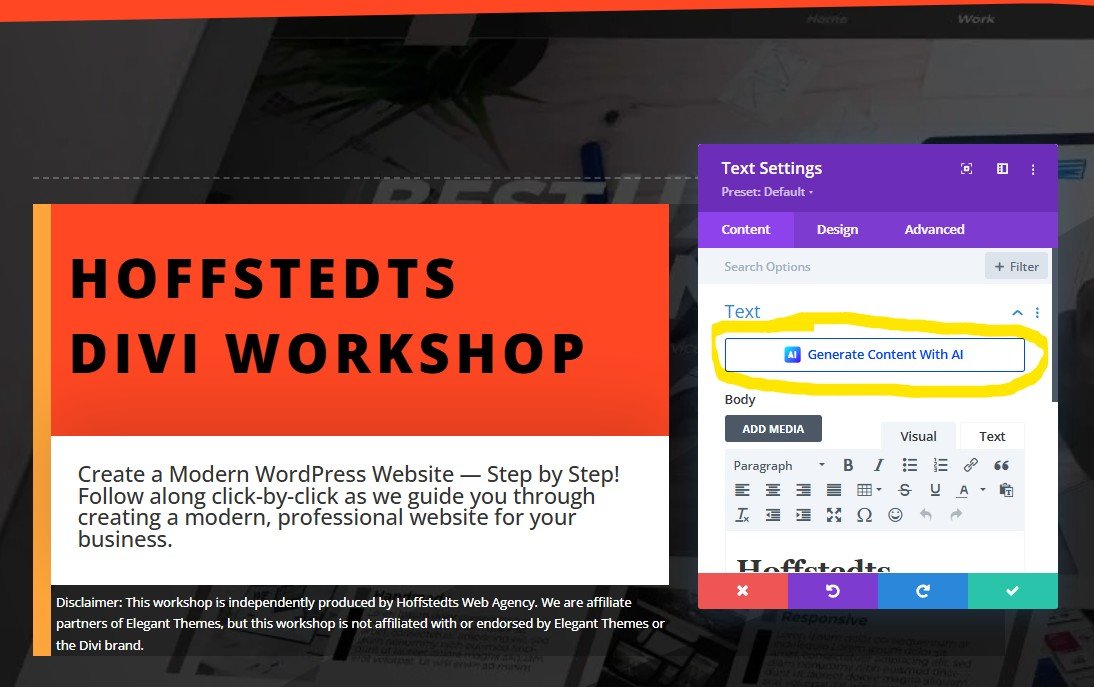
Use Divi AI to rewrite and request 3 versions.
- Step 3
Pick the best parts and edit manually for your offer + tone.
- Step 4
Check clarity: short sentences, clear CTA, no hype.
Image AI + Code AI (Small, safe improvements)
- Image AI
Create supportive images for a section and keep style consistent.
- Code AI
Ask for small CSS tweaks (spacing, mobile readability, button radius).
- Rule
Keep code simple. If you don’t understand it, don’t publish it.
Copy-paste prompts you can use inside Divi AI
Use these prompts when Divi AI asks what you want.
3) What it looks like in Divi (screenshots)
Use these screenshots as visual guidance while you follow the steps above.

4) Use ChatGPT to create a section (then paste into Divi)
ChatGPT works best when you ask for a Divi Module Plan (structure + module order + copy). This avoids messy HTML and gives you something you can build in minutes.
Best prompt: “Divi Module Plan” (copy/paste)
If you want ChatGPT to follow your existing style, you can either describe your colors and fonts (HEX + font names), or upload/share a screenshot showing your palette and typography so ChatGPT can match the look and tone.
Prompt for FAQ (Accordion / Toggle)
Prompt for a full page outline (fast)
Optional: Ask ChatGPT for “paste-ready” HTML (only when needed)
If you want a custom HTML section, ask for clean, minimal HTML + CSS. Then paste it into a Divi Code Module. Keep it simple.
5) Where to paste in Divi (important)
Most students get stuck here. Use this mapping and you’ll be fine.
Paste content
- Headlines → Heading Module
- Paragraph text → Text Module
- Buttons → Button Module (text + link)
- FAQ → Accordion/Toggle Module (Q/A per item)
- Images → Image Module
Paste code (when needed)
- CSS (global) → Divi → Theme Options → Custom CSS
- CSS (only this page) → Page Settings → Advanced → Custom CSS
- HTML embeds → Code Module
- Do not paste random HTML into Text Modules unless you know why.
6) Exercises (do this now)
These tasks will make you confident fast. Aim for progress, not perfection.
-
Exercise 1 — Create a hero section with ChatGPT
Use the “Divi Module Plan” prompt. Build it using Heading + Text + Button modules.
-
Exercise 2 — Improve the hero with Divi AI
Ask Divi AI for 3 headline versions. Combine the best parts and edit manually.
-
Exercise 3 — Add FAQ
Generate 6 FAQs with ChatGPT. Paste them into Accordion/Toggle modules.
-
Exercise 4 — Mobile check
Check spacing and readability on mobile. Adjust padding or font sizes if needed.